GI 260-style AOA indicator
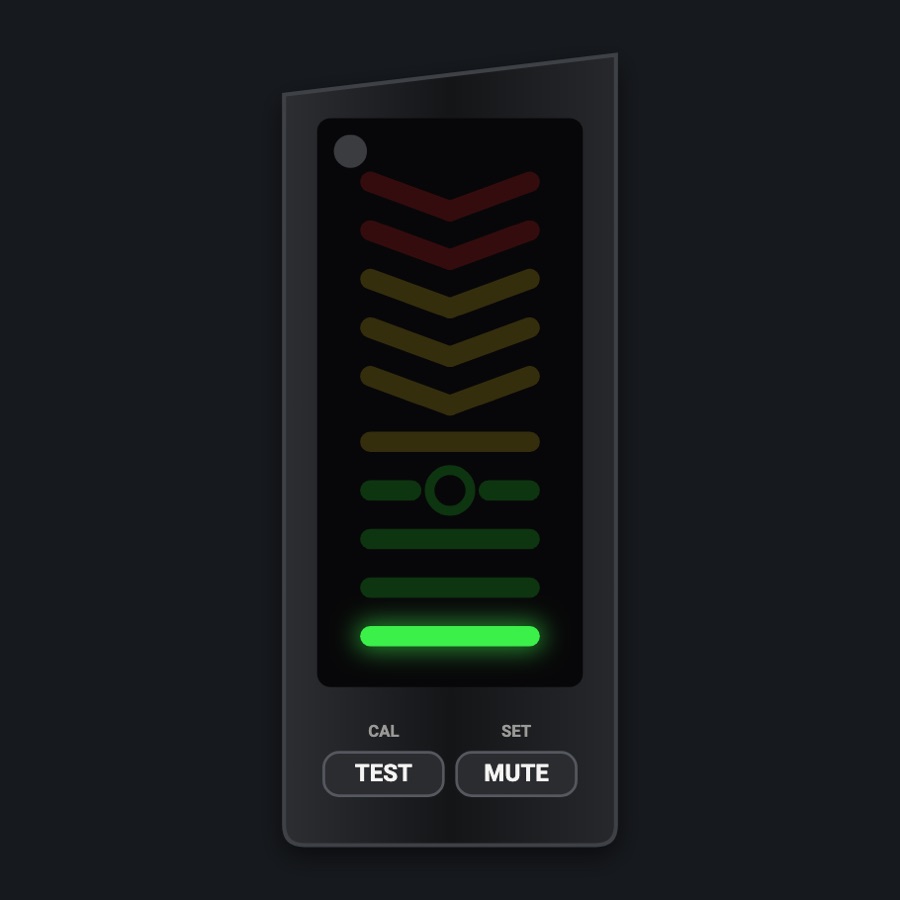
A tall LED angle of attack indicator: green bars in cruise, the green donut at on-speed approach, then yellow and red chevrons toward the stall. The angle is the simulator's, taken as a fraction of the wing's stall angle.
- Modeled on
- Garmin GI 260-style angle of attack indicator
- Category
- Airframe
- Size
- 1 cell
- Version
- 1.0 · 2026-10-19
- Plan
- Pro
- Simulators
- MSFS 2020 · MSFS 2024 · X-Plane 11 · X-Plane 12
Features
- Ten-step LED ladder lighting from the bottom: three green bars, green donut (about 52 % of stall AOA), yellow bar and chevrons, red chevrons near the stall
- Angle of attack scaled to the aircraft's stall angle from the simulator
- Unlit segments faintly visible; lit ones glow
- TEST key lights all segments while held
- Night: body and keys in the flood light, LEDs keep their colors (dimmed); the glareshield's warm light falls on the faceplate too when its dimmer is up (Settings > Dimmers > Glareshield, off by default)
Your aircraft: Uses the simulator's wing stall angle (stallAoa); dark ladder when angle of attack or stall angle are unavailable.
On the iPad
- Hold TEST to light every segment
- MUTE clicks but does nothing (no tone in the app)
- Long press to change or move the module
Simulator data
What the Hub reads from the simulator for this instrument, and what the instrument sends back. Names are the simulators' own: MSFS SimVars and events, X-Plane datarefs and commands.
Reads
| Value | MSFS | X-Plane |
|---|---|---|
| Angle of attack (deg) | INCIDENCE ALPHA (degrees) | sim/flightmodel2/misc/AoA_angle_degrees |
| Stall angle of attack (deg) | STALL ALPHA (degrees) | sim/aircraft/overflow/acf_stall_warn_alpha |
Add-on aircraft with their own systems may use other variables; the Hub reads the standard ones.
Changes
The instrument's version counts what its faces share (the case, the mechanism, the data, the sounds); a face's own version counts that face alone.
- 1.0 2026-10-19
- First numbered version.