
Maps
Every map in the NEXT (the moving map, the PFD’s inset, the Weather, Flight Plan and Nearest maps, the Waypoint pages) is drawn by the same map engine, MapLibre. The G1000-style MFD uses it too, in its own style.
Base maps
Section titled “Base maps”The Map Menu’s Base Map key goes through:
- Night (the default): roads, towns, water and names in a dark style.
- Day: the same in a light style.
- Terrain: the relief, tinted by height and shaded, with the roads, water and names over it.
- Off: no base map.
Base Map Brightness sets it at 100, 75 or 50 %. At night the base map dims, while the names, the terrain alert and the aviation layers stay bright.
The base maps come from free sources only: OpenStreetMap’s data through OpenFreeMap and OpenMapTiles, and the elevation from the Terrain Tiles on AWS Open Data (Mapzen, SRTM, USGS). A short © OpenStreetMap sits in the map’s corner: touch it to see all the credits. They’re also in Apps → Databases.
Offline map areas
Section titled “Offline map areas”Downloading needs the internet, so before a flight with no connection (or a slow one), keep the map on the device: Map Menu → Download Map Area. Headingstar downloads:
- 60 nm around the aircraft, and 30 nm around each waypoint of the flight plan;
- the departure and destination airports in detail, for the approach and the taxi maps.
The key shows its progress, and a message at the end says how much was kept. The areas work for every base map. A new download replaces the previous one. The route’s corridor is also kept, at the wider ranges, whenever there’s a flight plan.
The Map Menu
Section titled “The Map Menu”The map’s Menu turns on and off:
- Map Orientation: Track Up or North Up.
- Traffic, Terrain, Airspaces (controlled, special use, an altitude filter, labels), METARs, Weather Radar.
- Heliports: off by default. Off, they’re left out of the map, the nearest airports and Direct-To’s Nearest tab.
- Map Detail: All, 3 (no names), 2 (no airports, navaids or airspaces), 1 (the route, traffic and terrain).
- Track Vector (30 s to 20 min ahead), Track Line (a line ahead of the nose), Breadcrumbs, Traffic Pattern, Vertical Profile, the Fuel and Glide Range Rings, Map Data Fields.
- Auto Zoom, Winds Aloft, Chart on Map, VFR Arrival, Next Frequency, Wind: see The navigator.
- Base Map, Base Map Brightness, Download Map Area.
Three fingers on the map lock the screen, as anywhere: the map ignores them, so it doesn’t move.
Traffic
Section titled “Traffic”Traffic comes from the simulator (MSFS), as an ADS-B receiver would see it:
- A hollow triangle along its track; proximate traffic (within 6 nm and 1,200 ft) a filled one; an advisory an amber circle. Traffic not moving is a diamond, traffic on the ground gray. Parked aircraft aren’t shown.
- Each one with its altitude relative to yours, climbing or descending.
- The same symbols on the map, on the flight display and in synthetic vision.
Traffic advisories show a TRAFFIC box on the map and are called out: “Traffic! Two o’clock, high, three miles”. They’re silent on the ground, below 400 ft, and with the gear down.
The Traffic app has its own page: heading up, your aircraft in the middle, from 750 ft to 40 nm. Next Target steps through the traffic, List shows it as a list, and its Menu sets:
- Altitude Range: Normal (±2,700 ft), Above, Below, Unrestricted;
- Motion Vectors: Off, Absolute or Relative (a minute ahead);
- Operating Mode: Operate or Standby.
Map Menu → Traffic sets the map’s traffic: labels, a Declutter range, motion vectors and the Status Icon. It also shows the ADS-B status: Airborne, Surface, or Not Available when no traffic data has come for 10 seconds.
Waypoints
Section titled “Waypoints”The Waypoint app shows any airport, navaid or waypoint, with its map. An airport has Info (city, elevation, runways), Frequency, Runway, Weather, Charts and SafeTaxi tabs.
The Weather tab has METAR and TAF tabs and Refresh. The METAR shows as written, with its age (yellow once it’s over 75 minutes old), and then a summary: the flight category, the wind (with an arrow across the best runway, and that runway’s headwind and crosswind), the visibility, the clouds and the ceiling, QNH in your pressure unit, the temperature and dew point with their spread, and the density altitude. CAVOK, 9999, NSC, SKC and NCD are written out in words. Each airport’s report is fetched once and kept for 10 minutes. If the app can’t get it (offline, for example), it says so and offers Retry. The reports are real-world ones from aviationweather.gov. With live weather they match the simulator’s; with a preset or custom weather they won’t.
Wherever you enter a waypoint, the finder has tabs:
- Recent, FPL (the flight plan’s), User (your own);
- Nearest, filtered by type: airports, VORs, NDBs, intersections, user waypoints;
- Favorites: touch the star on any row to add one;
- Search: by ident, name or city.
The Nearest app lists the nearest airports, VORs, NDBs, user waypoints, airspaces and intersections. Intersections come from the simulator, through the Hub.
Direct-To
Section titled “Direct-To”Direct-To opens its window: the waypoint (typed, or from the Flight Plan, Nearest or Recent tabs), Course To (blank: straight from here), Info, Remove, and Activate. Pressing Direct-To again activates it too. The course is drawn from the aircraft as it turns toward the waypoint, then straight from there. A waypoint not in the flight plan is added for the Direct-To only.
User waypoints
Section titled “User waypoints”Create your own waypoints:
- Save as User Waypoint, from the menu that opens where you touch the map;
- Create on the User WPTs page.
Create User Waypoint asks for a Name and where it is: Present Position, Lat / Lon, Radial / Distance from a waypoint, or Radial / Radial from two. Add a Description, and pick the Coordinates format (DEG, DM or DMS). User waypoints are cyan squares on the map.
The User WPTs page’s Menu imports (.csv, .gpx), exports, and deletes them all; the ones in the active flight plan are kept.
SafeTaxi
Section titled “SafeTaxi”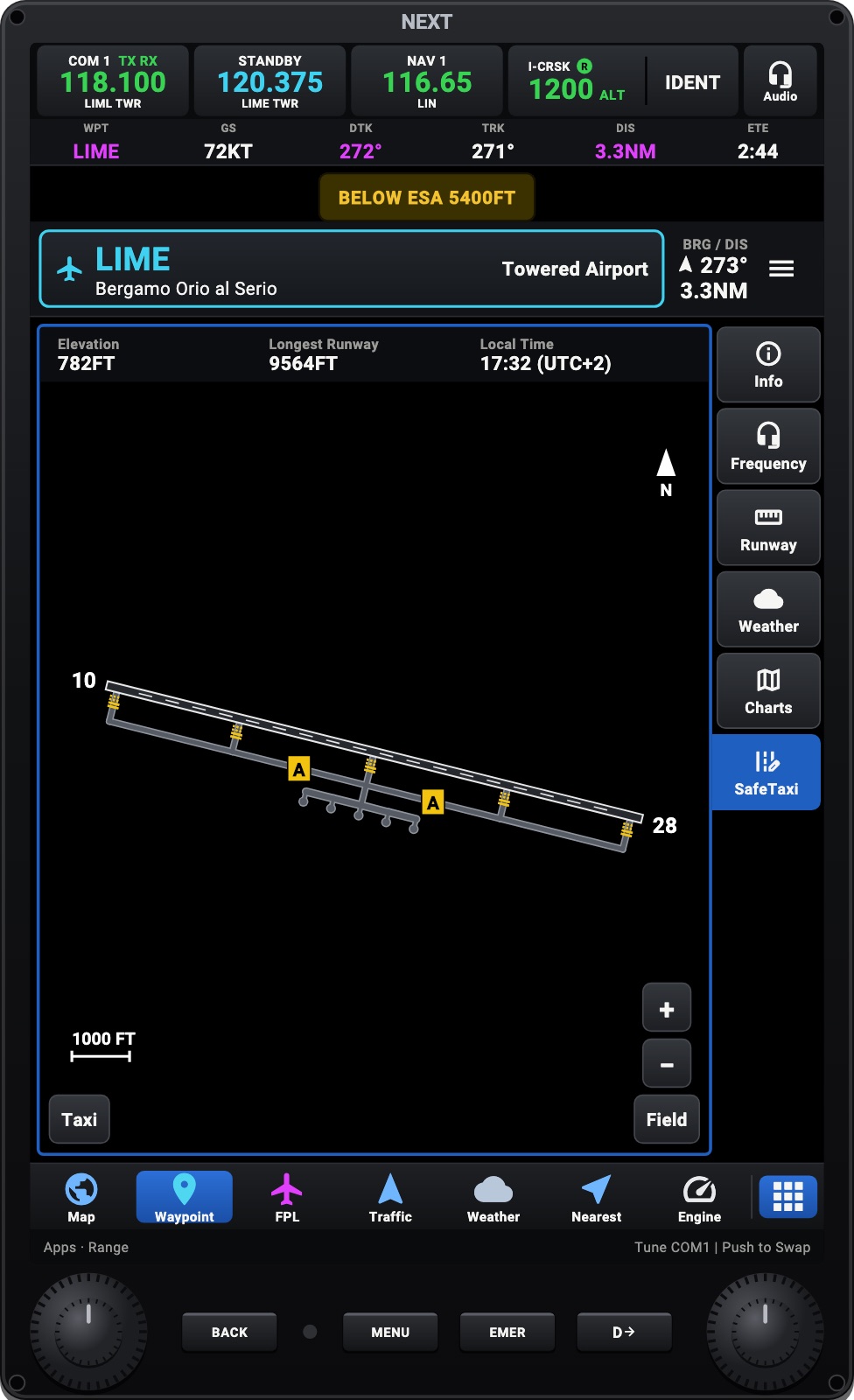
SafeTaxi draws the airport as a chart: the runways with their thresholds and markings, the taxiways with their yellow centerlines and names, the hold-short lines (also the ones the simulator doesn’t paint), the stands and gates with their names, and your aircraft.
- On an airport’s Waypoint page, the SafeTaxi tab. Pinch to zoom, or step from 400 ft to the whole field.
- On the moving map, close in (2 nm or less), the airports around you are drawn the same way.
- In synthetic vision, the pavement around the aircraft.
The taxiways come from the simulator through the Hub, for the airport you’re at; after the demo, the real airport’s are asked for. Set a taxi route with Taxi (SafeTaxi and taxi routes).
Synthetic vision
Section titled “Synthetic vision”See The flight display. The terrain uses topographic colors (or green), with lakes and wide rivers in blue, hillshade, and the map laid over the terrain.