
The instrument panel
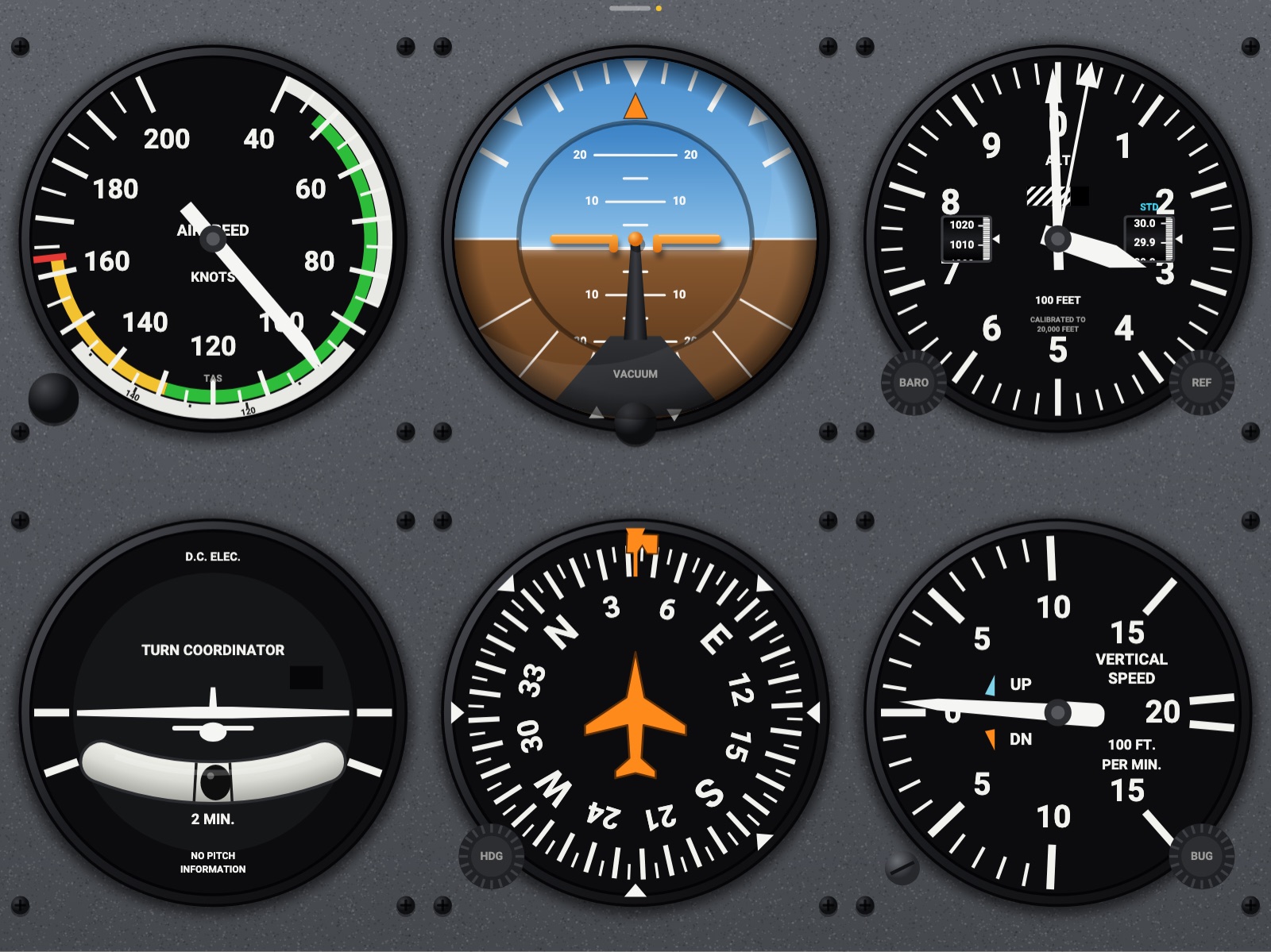
The panel is Headingstar’s instrument view: pages of instruments you swipe between, as many as your devices can hold.
The menu at the top
Section titled “The menu at the top”The same menu sits at the top of every screen:
- Panel | Avionics | FlightBook: the three screens. The panel is the instruments; Avionics is the NEXT’s flight display or map on the whole screen; the FlightBook is your kneeboard.
- This screen’s own keys: Customize on the panel, the views in Avionics.
- The connection chip: touch it for Settings → Connection.
- Lights: day, night or auto.
- Lock and Settings.
On a narrow screen, the screen’s own keys are behind ⋯. On an iPhone the menu is a status bar with one menu key (On an iPhone).
- Swipe left or right for the next page; the dots at the bottom show where you are.
- An iPad has a six-cell page by default, or twelve, or twenty-four (6 × 4: a whole panel on one page of a large iPad). An iPhone shows two instruments, one above the other.
- Each device keeps its own pages, up to eight.
Changing an instrument
Section titled “Changing an instrument”- Touch an instrument (unlocked) to open the picker: choose another instrument in its place, its face or its variant (NAV 1 or NAV 2, an engine of a twin), or Move earlier/later and Remove.
- Touch an empty cell to add an instrument there.
- Long press and drag an instrument onto another to swap them, or onto a free cell to move it. Two thin modules (radios, autopilots, the audio panel, the transponder) can be stacked in one cell.
- The free avionics rack (3 × 2, standing 2 × 3, or small 2 × 2) holds the radios, transponders, audio panels, autopilots, the annunciator strip and the GNS navigators you want, in your order. Add, move and remove its units in its sheet, or drop a module on it.
Customize
Section titled “Customize”Customize in the menu (or a long press on the page dots) opens a bar at the bottom:
- + Page: a new, empty page.
- Grid: this page’s layout: 2 × 2, 3 × 2, 4 × 3 or 6 × 4 (turned in portrait: 2 × 3, 3 × 4, 4 × 6). The G1000’s displays and the NEXT flight display take 4 × 3 cells, so a page holding one is at least 4 × 3.
- ◀ ▶: move the page earlier or later.
- Remove: delete the page (Undo brings it back).
- Keys & MIDI: map controls (Keys, controllers and MIDI).
- Ready-made: your pages, and ready-made pages for each aircraft, among them a Full Panel on a 6 × 4 page: the six-pack, the radio stack, the engine and the systems together (a glass cockpit’s flight display and navigator side by side).
On an iPhone the bar keeps the page’s own keys; Keys & MIDI and the ready-made pages are in Settings.
The lock
Section titled “The lock”Lock the panel for the flight with the lock key, or a tap with three fingers. Locked:
- knobs and keys still work, but nothing moves or changes by accident;
- the menu hides to a small tab at the top; touch it, or swipe down from the top edge, to show it for a few seconds;
- the screen stays the way it’s turned (Settings → Menu & device can turn that off);
- the pages don’t turn.
Night lighting
Section titled “Night lighting”The lights key goes from day, to night, to auto (auto follows the sun at the aircraft, at the simulator’s time, or the cockpit’s panel light switch in MSFS). At night:
- the round gauges take the cockpit’s red flood light;
- the glareshield’s light, warm white from above, falls over the whole panel, brightest at the top of the page;
- each analog instrument has its own light, a lamp hidden at the top of its case, lighting its dial down;
- the displays dim.
Set each one in Settings → Display & lighting → Dimmers: Red flood light, Glareshield, Instruments (analog), Displays, and Labels and keys. With the flood turned down, the panel is lit white. On the Hub the lights are shared: dim them on one device and the others follow (One cockpit, several devices). The Hub’s Cockpit page sets them for every device at once, and the Hub remembers them.
Night lighting is part of Headingstar Pro.
Your aircraft
Section titled “Your aircraft”The instruments follow the aircraft you fly: airspeed arcs, V-speeds, engine limits, a twin’s two engines, fuel tanks. An aircraft Headingstar doesn’t know is flown as a generic one of its kind, and Use as… picks another profile (Any aircraft). With Pages follow the aircraft (Settings → Pages), each aircraft also keeps its own pages.