The flight display
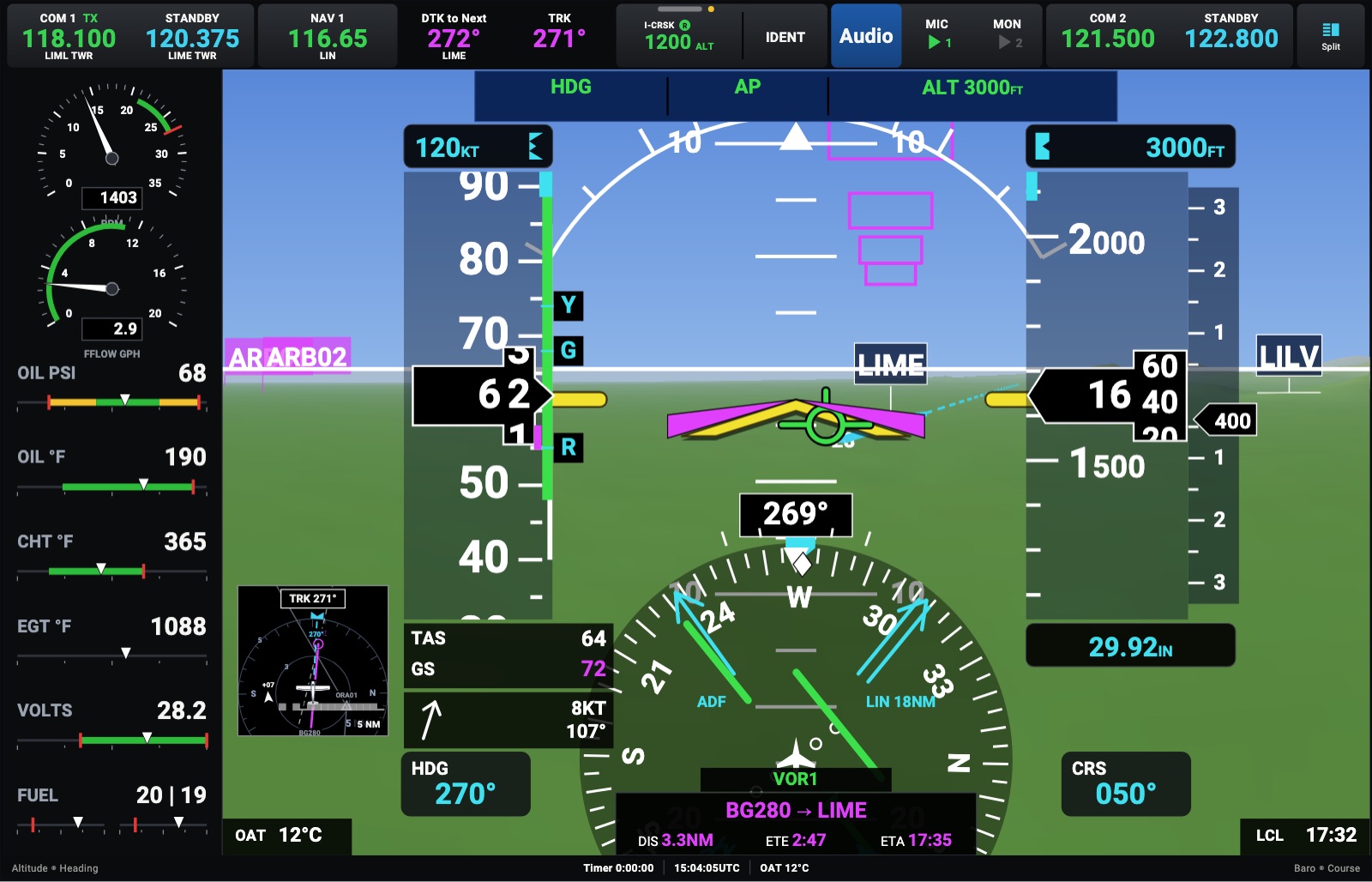
The flight display shows:
- attitude, the airspeed and altitude tapes with their bugs and trends, vertical speed;
- the HSI with the course and its deviation, and bearing pointers;
- the autopilot’s modes;
- the engine strip, and the radios in the bar at the top.
Put it on a page of the panel, or on the whole screen in Avionics (PFD). On an iPhone held upright it has its own layout, with large radios (On an iPhone).
No room for its 4 × 3 cell? Add the NEXT navigator (2 × 3) and choose PFD in its picker (SCREEN > PFD). The PFD stands in the navigator’s cell, with the same keys and knobs along the bottom, and the Split key puts the navigator’s apps under it. Synthetic vision, the bearing pointers, the minimums and the other PFD settings are shared with the 4 × 3 flight display. Choose Map to switch the cell back to the navigator.
The engine strip follows the aircraft: a piston’s RPM and manifold pressure, a twin’s two engines side by side, a turboprop’s torque and ITT, a jet’s N1, a helicopter’s rotor (Any aircraft). The Engine app shows the same as round dials and tiles, larger.
Touch a value (heading, altitude, speed, course, baro) to set it on a keypad. The exact value goes to the simulator.
Synthetic vision
Section titled “Synthetic vision”The terrain ahead, in 3D, in topographic colors (green in the lowlands, then olive, tan and brown, white up the mountains), with lakes, the sea and the wider rivers in blue, lit as a hillshade. Only the terrain that sets off a terrain alert turns yellow (TERRAIN AHEAD) or red (PULL UP). Over it:
- Runways to their size, painted as they are: the threshold bars, the aiming point, the touchdown zone, the number. On the approach, your runway is outlined in cyan with its centerline extended toward you. That’s the approach’s runway, else the one most into the wind.
- Taxiways near the airport, with their names on signs and the hold-short lines, and the pavement around the aircraft.
- On the ground, the taxi route you set in SafeTaxi as a magenta line. The next hold-short line turns red as you reach it, and a sign over the next turn shows the taxiway to take.
- Traffic, as on the map, with its relative altitude; an amber arrow at the edge for an advisory out of view.
- Your flight plan’s waypoints on magenta flags, and the airports on white ones.
- The pathway to the selected altitude, where the altimeter will read it.
The PFW Menu sets:
- Synthetic Vision on or off;
- Map on Terrain: the base map laid over the terrain, sharp close in;
- Traffic Symbols;
- Field of View: Wide, Normal (the default, about what you’d see out of the window) or Narrow;
- Terrain Colors: Topographic or Green.
At night
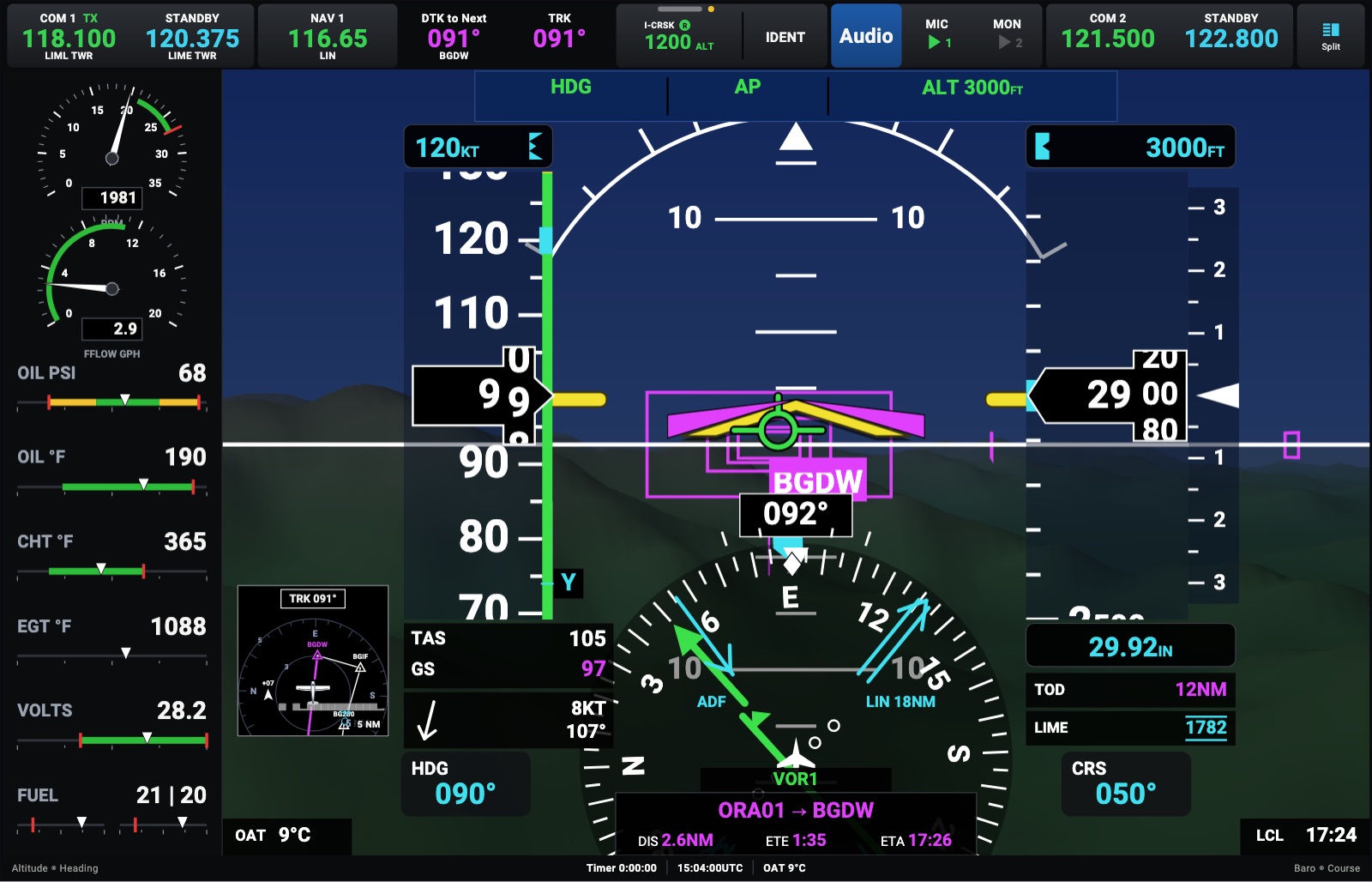
Section titled “At night”With the lights at night the sky turns navy and the ground dark, while the symbols keep their colors.
When data stops
Section titled “When data stops”If the simulator stops sending, the airspeed, altitude and attitude are crossed out in red, and the navigator says NO DATA FROM THE SIMULATOR. Nothing frozen ever looks current.
Training failures
Section titled “Training failures”Settings → Failures fails the attitude (AHRS), the air data (ADC), the pitot and static systems, or a G1000-style display, to practice partial-panel flying.