
Apple Watch and Live Activity
The Apple Watch app
Section titled “The Apple Watch app”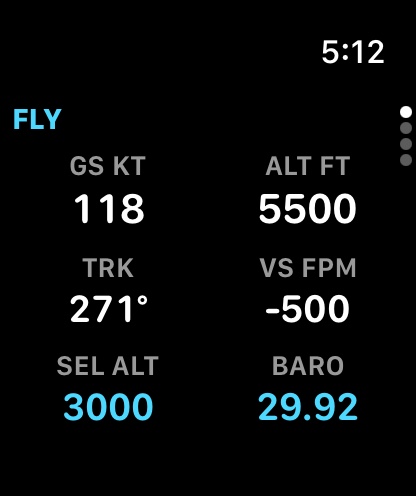
The watch doesn’t talk to the Hub itself: your iPhone passes the flight on to it. Keep Headingstar open on the iPhone, connected to the Hub or flying the demo. Until data arrives the watch says Open Headingstar on your iPhone and connect it to the Hub or start the demo.
It needs watchOS 10 or later. Swipe up and down between four pages:
- FLY: groundspeed, altitude, track, vertical speed, the selected altitude and the baro setting.
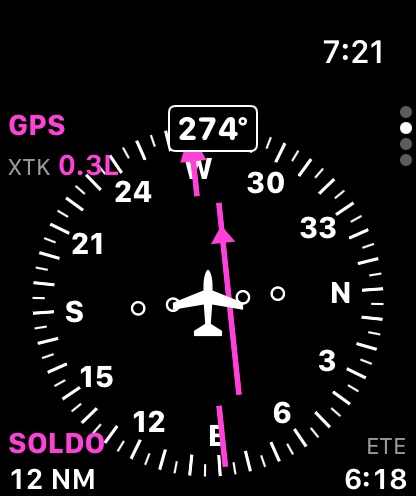
- HSI: a compass card drawn as the G5’s, heading up: the course needle and its deviation, TO/FROM, the ground track’s triangle on the rim, the source (GPS or VOR), the cross-track, and the next waypoint with its distance and ETE.
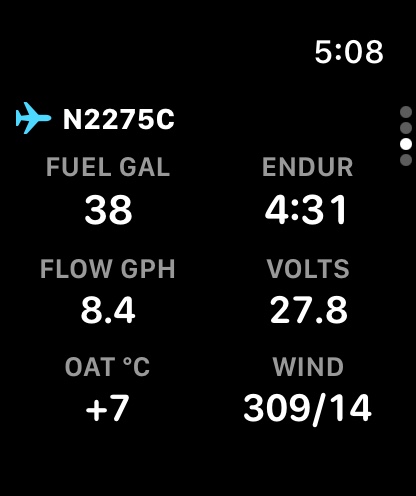
- The aircraft, under its tail number: fuel and endurance at the current flow (both amber with less than 45 minutes left), fuel flow, volts, the outside air temperature and the wind.
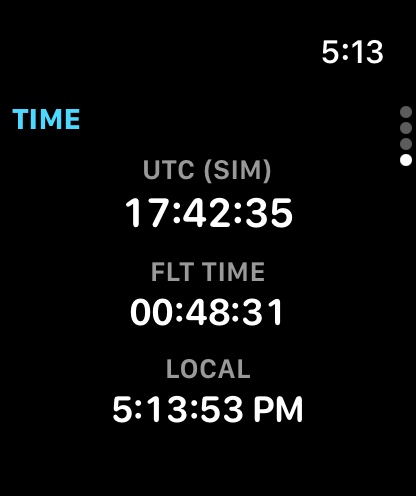
- TIME: the simulator’s UTC, the flight time and your local time.
NO DATA shows at the top when the simulator stops sending. Each spoken alert (terrain, traffic, altitude…) taps your wrist and shows a banner for a few seconds.
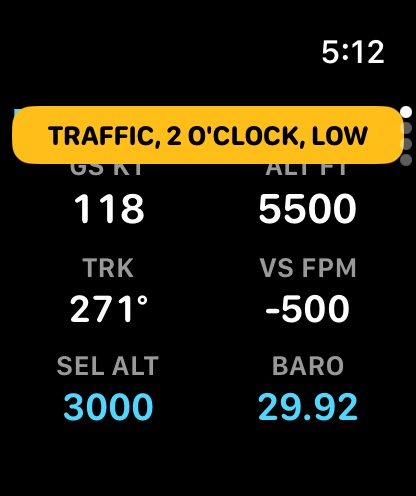
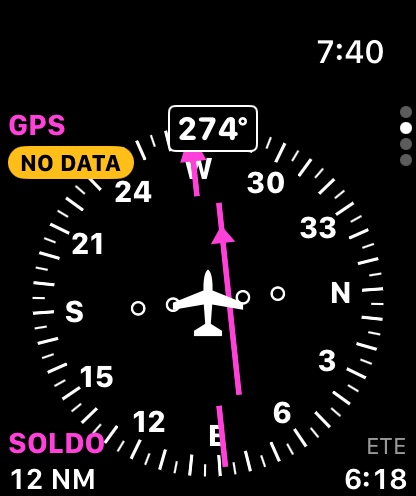
The watch only shows: there are no controls on it. The type is sized to the watch, from a 40 mm to an Ultra.
The Live Activity
Section titled “The Live Activity”On an iPhone, the flight can sit on the Lock Screen and in the Dynamic Island while you’re airborne:
- the next waypoint, its distance and the ETE counting down;
- the course deviation bar;
- groundspeed, altitude and track;
- the latest alert, for a few seconds.
On an Apple Watch with watchOS 11, the same appears in the Smart Stack.
Turn it on in Settings → Menu & device → Live Activity. It’s off by default, and iOS’s own Live Activities permission for Headingstar must allow it. It needs iOS 18 or later.
- It starts once you’re in the air, with data from the simulator.
- It ends about a minute after landing, or as soon as you leave Headingstar: iOS stops the app’s data in the background, so it couldn’t stay current. Come back to the app while still airborne and it starts again.
The tail number
Section titled “The tail number”The watch and the Live Activity show the aircraft’s tail number: the one you set on the annunciator strip (Tail number), else the simulator’s, else the aircraft’s name.