
Troubleshooting
The app doesn’t find the Hub
Section titled “The app doesn’t find the Hub”- Is the Hub running on the PC, and is the iPad on the same Wi-Fi? Guest networks and some mesh or public networks keep devices apart.
- The firewall: the Hub must be allowed on private networks. In Windows, open Windows Security → Firewall & network protection → Allow an app through firewall, find HeadingstarHub, and tick Private. Your network must be set as private, not public.
- iOS Local Network: on the iPad or iPhone, Settings → Privacy & Security → Local Network, turn Headingstar on.
- Type the address: in Headingstar, Settings → Connection, Or type the PC’s address (find it with
ipconfigon the PC: the IPv4 address).
The instruments are crossed out in red
Section titled “The instruments are crossed out in red”A red X means no current data for that instrument:
- Not connected: the chip at the top says NOT CONNECTED or CONNECTING. See above.
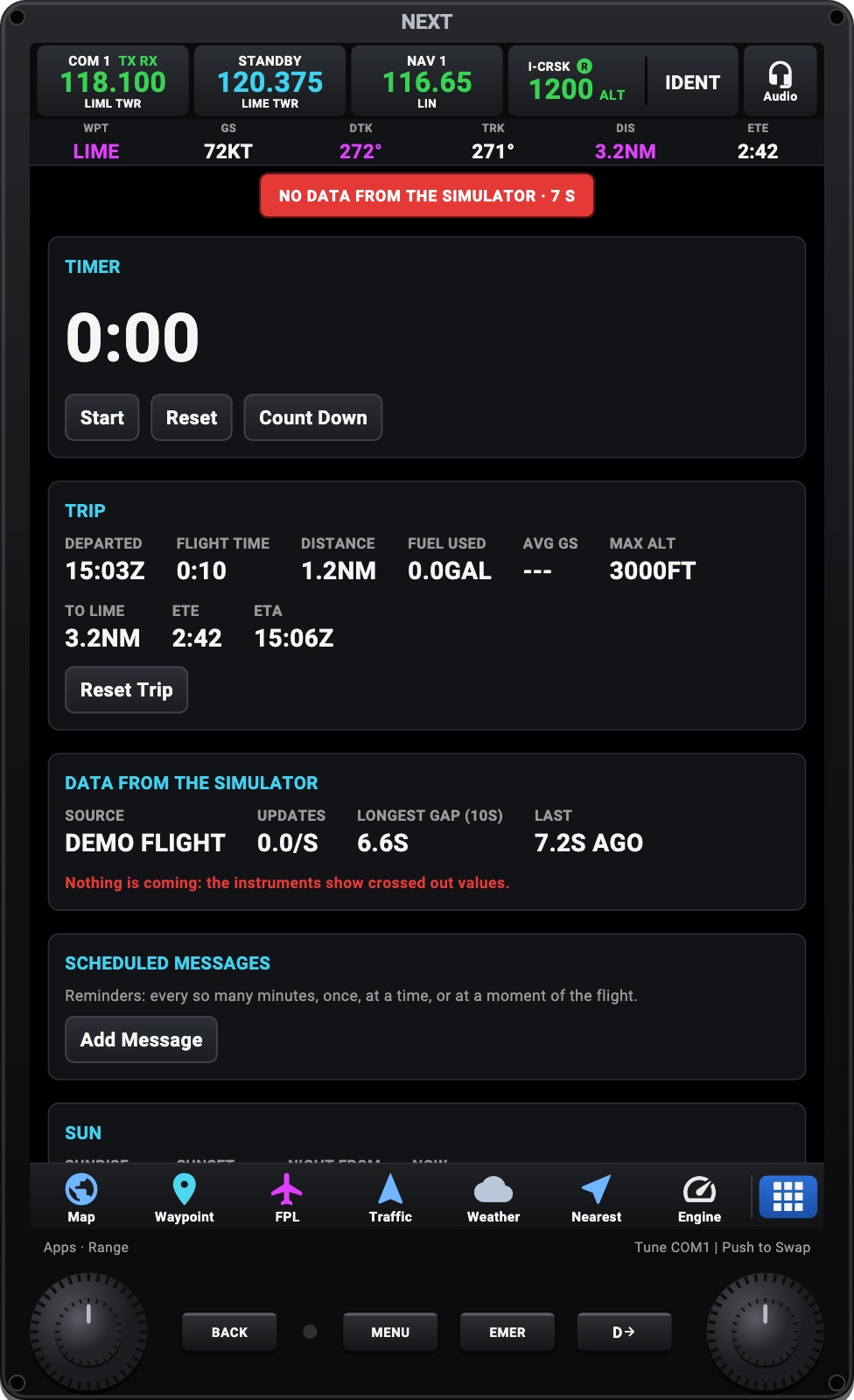
- NO DATA FROM THE SIMULATOR: the Hub is connected but the simulator isn’t sending. Is a flight loaded, not the menus? Does the Hub’s header show the simulator connected?
- Utilities → Data from the simulator (in the NEXT navigator) shows the updates a second, the longest gap and the time since the last update.
The Hub doesn’t connect to MSFS
Section titled “The Hub doesn’t connect to MSFS”- The Hub’s header says when SimConnect.dll is missing: see SimConnect.
- Start a flight. MSFS answers only once it’s past the main menu.
The Hub doesn’t connect to X-Plane
Section titled “The Hub doesn’t connect to X-Plane”- Choose X-Plane next to the Hub’s demo switch.
- X-Plane on another computer: set
XPlaneHost(X-Plane).
My flight plan isn’t in MSFS’s GPS
Section titled “My flight plan isn’t in MSFS’s GPS”Headingstar sends a plan of two waypoints or more, a moment after each edit, and again when the Hub reconnects. Flight Plan → Send to Sim sends it now.
The Headingstar panel isn’t on MSFS’s toolbar
Section titled “The Headingstar panel isn’t on MSFS’s toolbar”Install it from the Hub (Simulator panel → Install in MSFS), then restart the simulator (The Headingstar panel).
The instruments show the wrong aircraft’s limits
Section titled “The instruments show the wrong aircraft’s limits”The Hub picks the profile from the aircraft’s title in the simulator, or flies it as a generic aircraft of its kind. If it chose wrong, use Settings → Aircraft & Pro → Use as… on the device (Any aircraft).
A device doesn’t follow the others
Section titled “A device doesn’t follow the others”- On that device, Settings → Connection → Shared with the cockpit: the group (the lighting, the flight plan…) must be on there.
- Both devices must be connected to the same Hub; the Hub’s Cockpit page lists the devices and which groups each one follows.
- Everything but the panel lighting needs a Hub from version 0.4.30 on: update the Hub (This Hub → Updates).
See One cockpit, several devices.
The map is blank or has no base map
Section titled “The map is blank or has no base map”The base maps download from the internet. With no connection, download the area before the flight: Map Menu → Download Map Area (Offline map areas). Check also that Base Map in the Map Menu isn’t Off. If the map stopped working once, it comes back as a plain map for that session; the Map Menu’s Safe Map key (Try MapLibre) brings the full map back.
The Apple Watch shows nothing
Section titled “The Apple Watch shows nothing”The watch gets the flight from the iPhone: Headingstar must be open on the iPhone, connected to the Hub or flying the demo. The watch app and the Live Activity need Headingstar Pro. The Live Activity is off until you turn it on in Settings → Menu & device, and shows only in the air (Apple Watch and Live Activity).
Something else
Section titled “Something else”Write to us at support@headingstar.com. Tell us your device, the app’s and the Hub’s versions, and the simulator.