
Headingstar documentation
Headingstar has two parts:
- The Headingstar Hub, a Windows program on your simulator PC. It reads MSFS or X-Plane and sends the data to your devices.
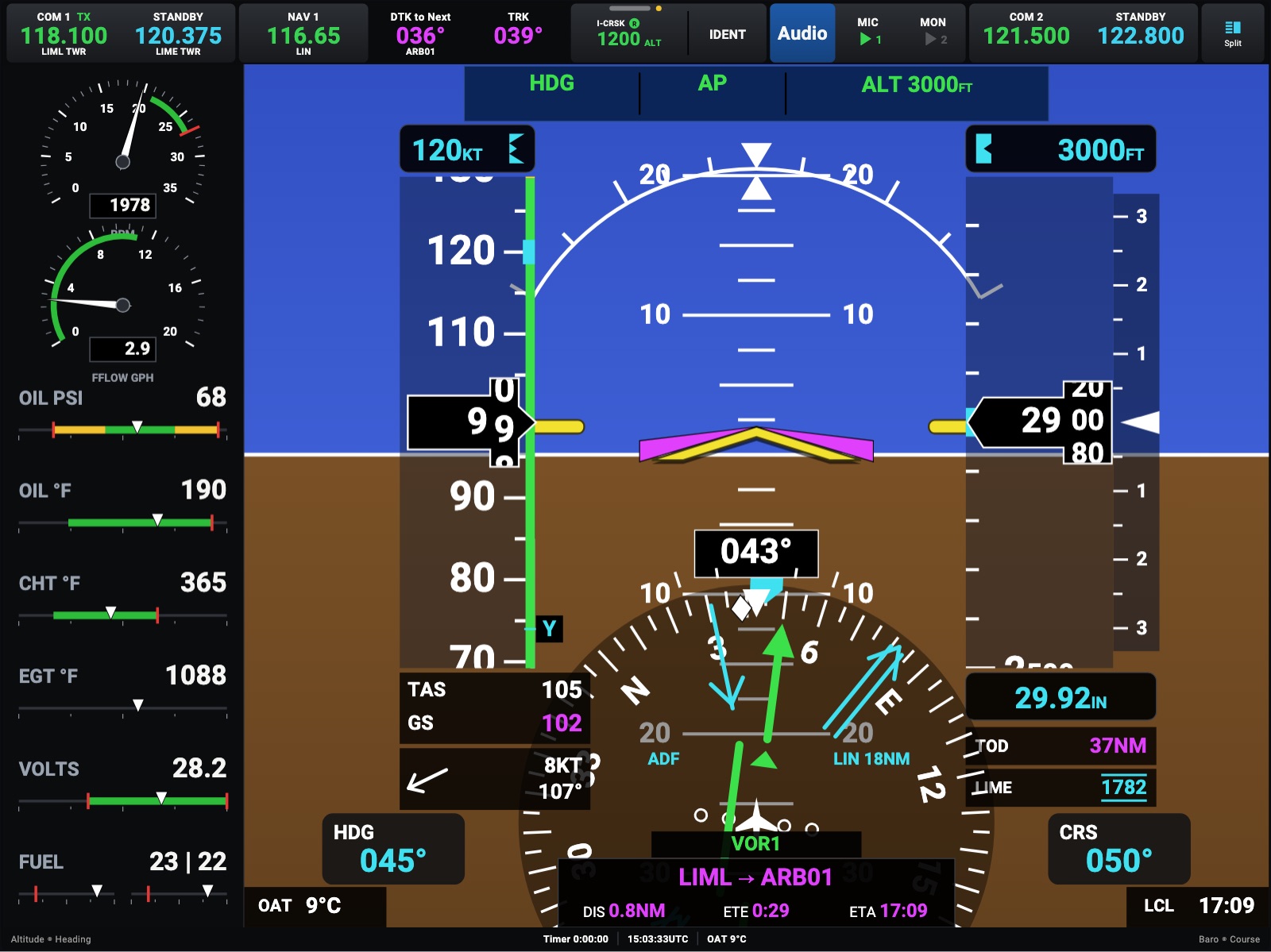
- The Headingstar app for iPad and iPhone (Android is coming soon). To the Hub, each device is one more instrument: a six-pack, a radio stack, a flight display, a navigator, a kneeboard, or a touch controller in your hand. An Apple Watch can show the flight too.
They talk over your Wi-Fi. No cables, and no plugins in the simulator.
Getting started
Section titled “Getting started”What you needThe PC, the simulator, the iPad or iPhone, the network.
Install the HubRun it on the simulator PC, and let it find SimConnect.
Connect your iPad or iPhoneThe app finds the Hub on your Wi-Fi by itself.
MSFS: the Headingstar panelOptional: your flight plan and the airspaces from MSFS.
Using Headingstar
Section titled “Using Headingstar”The menu at the top has three screens: Panel, Avionics and FlightBook.
The instrument panelPages, layouts, the lock, night lighting.
AvionicsThe flight display and the moving map on the whole screen.
The navigatorFlight plans, procedures, Initialization, alerts.
MapsBase maps, offline areas, traffic, waypoints, SafeTaxi.
The FlightBookWrite with Apple Pencil, checklists, weight and balance, charts.
On an iPhoneThe views on a phone, and the Remote: the phone as a touch controller.
Apple Watch and Live ActivityThe flight on your wrist and on the Lock Screen (beta).
Any aircraftTurboprops, jets, helicopters: generic profiles and Use as…
One cockpit, several devicesSet the lights, the transponder and the rest once; the flight plan and the checklists shared as you fly.
Reference
Section titled “Reference”Instrument referenceEvery instrument and module: variants, features, controls, mapping, and the simulator data each one uses.
AircraftThe aircraft profiles: their V-speeds, airspeed arcs and engine limits, and how the Hub picks one.