
The navigator
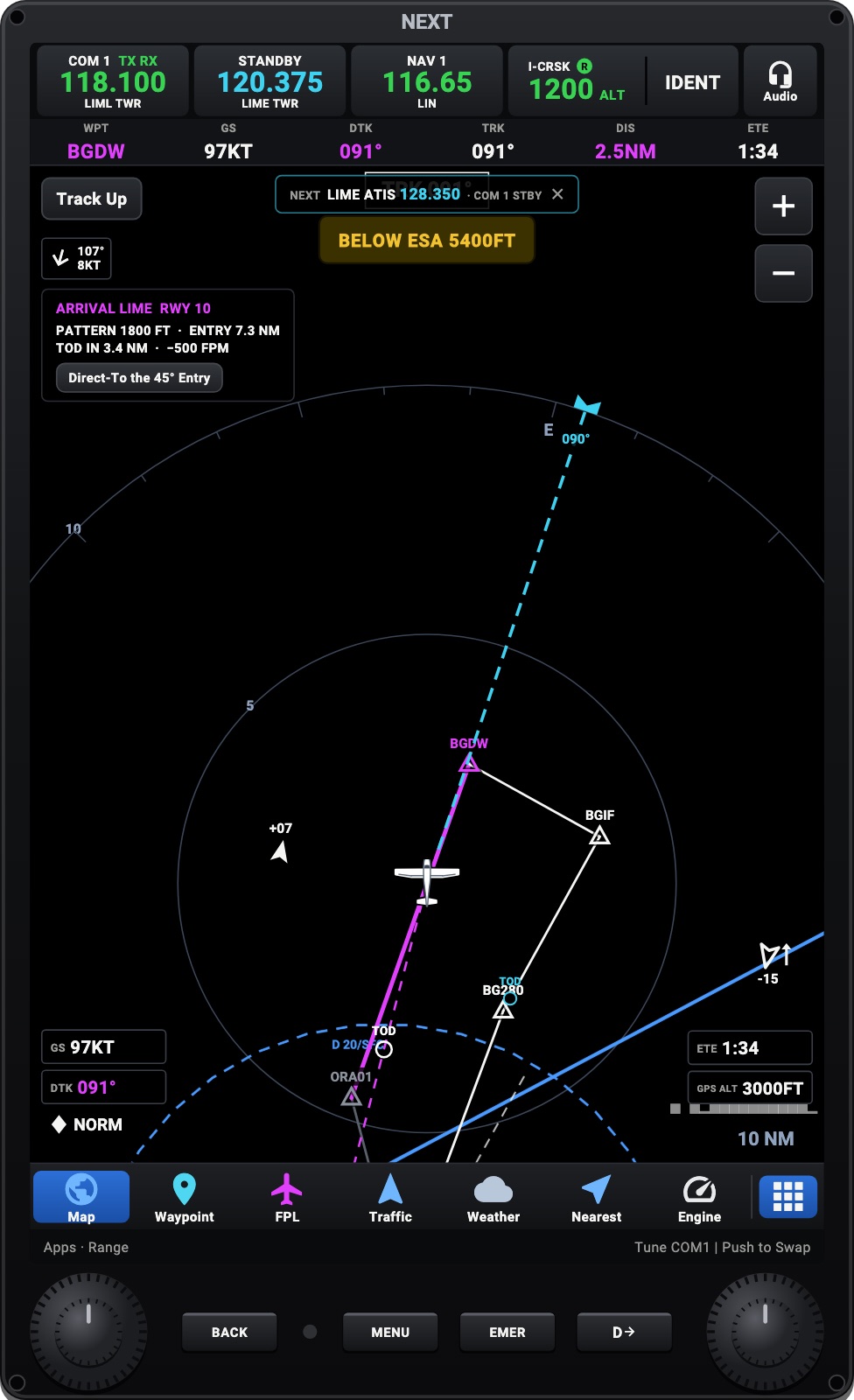
The NEXT navigator puts the moving map, the flight plan and its apps on a page of the panel, or on the whole screen in Avionics. On an iPhone, the Remote works it by touch. Its Apps key opens:
- Map, Waypoint, Flight Plan, Weather, Traffic, Nearest
- Engine, Fuel, Circuit Breakers, Utilities
- Charts, Checklist, Flight Log, Briefing, Alternates, Initialization
- Direct To, PROC, Radios, Autopilot, User WPTs, Emergency, Aircraft, Inhibits
- the settings: Map Settings, PFW Settings, Data Bar, Units, Databases, About
The maps, traffic, waypoints and SafeTaxi have their own page: Maps.
Flight plans
Section titled “Flight plans”Enter waypoints on the Flight Plan page, or bring a plan in:
- Import from SimBrief: enter your SimBrief pilot ID, then preview and import your latest plan.
- Load from Sim: the plan the simulator has (MSFS, with the Headingstar panel).
- Files:
.pln,.fpland.gpx, to import or export. - Paste a route, or share one as a QR code.
Add procedures (departures, arrivals, approaches, with their runway and transition) and airways from the simulator’s own database, or go Direct-To any waypoint. In MSFS, your plan is loaded into the simulator’s GPS as you edit it.
On the Hub, the plan is the cockpit’s: load or edit it on one device and the others show the same route, with its procedures, its altitudes and the leg flown; a Direct-To on one is the Direct-To on all (One cockpit, several devices). The device you edit it on sends it to the simulator. The Hub’s Cockpit page shows the route and can clear it.
Initialization
Section titled “Initialization”Apps → Initialization gets the flight ready, in four tabs:
- Setup: the flight ID; Import FPL from SimBrief, the simulator or a stored plan; the ETD (HHMM, UTC: until takeoff, the plan’s and the nav log’s estimates count from it); the alternate and the cruise altitude.
- Weight & Balance: as in the FlightBook.
- Takeoff: the V-speeds, and the takeoff and landing distances (for a known aircraft).
- Emergency Return: Direct-To back to the origin, Smart Glide, 121.5 and 7700.
The map
Section titled “The map”The map’s Menu has its layers and options (the whole list). Among them:
- Auto Zoom: the range fits the next waypoint, 1 nm while taxiing. + or − hold your range until the next leg.
- Winds Aloft: the forecast at each waypoint, and each leg’s headwind or tailwind
- Chart on Map: a chart you imported and calibrated, drawn under the route
- VFR Arrival: for a destination with no approach loaded, the runway the wind favors, the pattern altitude, the top of descent, and a Direct-To to the 45° entry
- Next Frequency: the destination’s ATIS 30 nm out, the tower at the runway, ground after landing. Touch it to put it in COM 1 standby.
- Terrain, airspaces, METARs, traffic, weather radar, the base map, and the map kept for offline use
SafeTaxi and taxi routes
Section titled “SafeTaxi and taxi routes”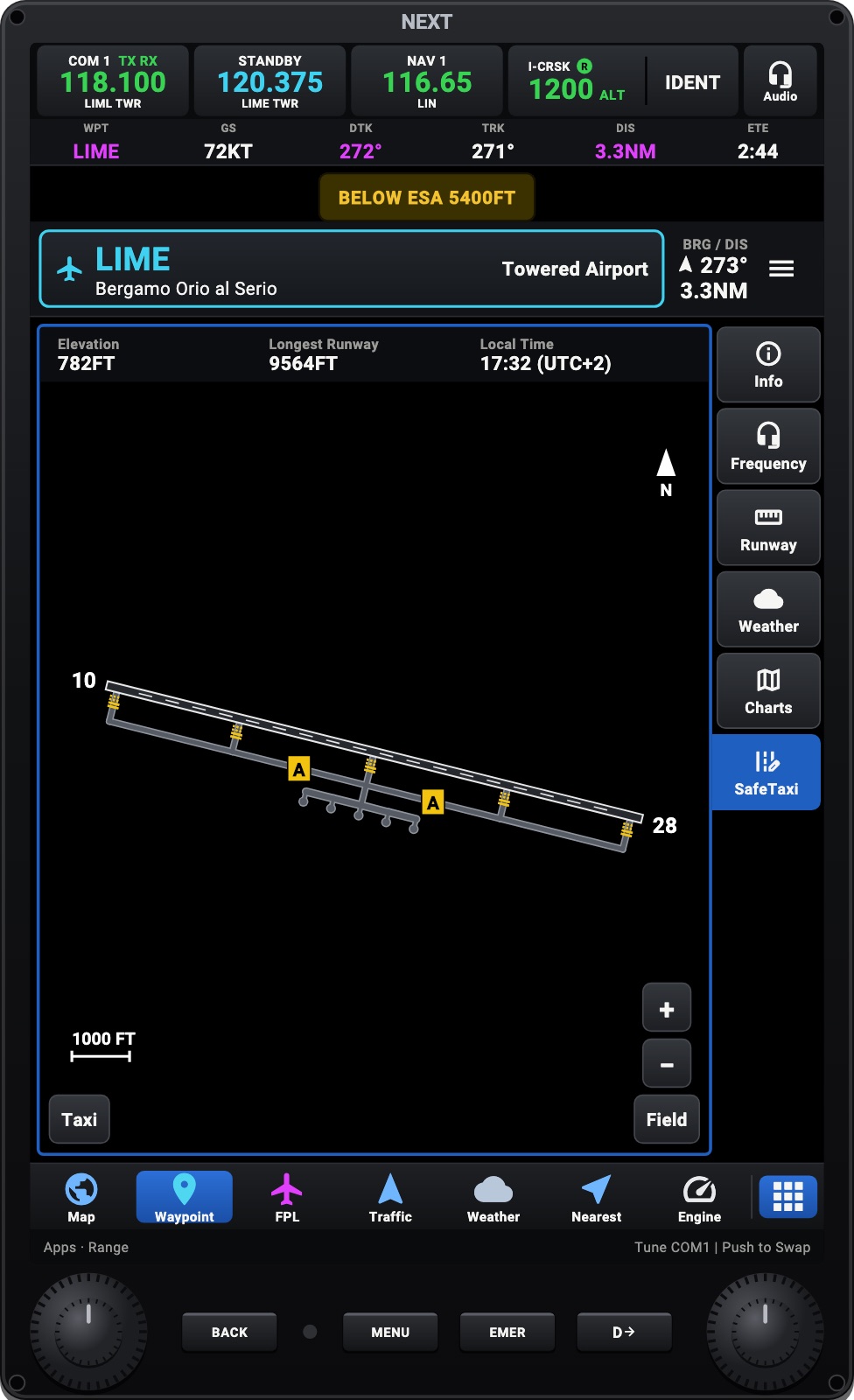
Close in at an airport the map shows SafeTaxi: the runways, the simulator’s taxiways with their names, the hold-short lines, the stands and your aircraft. Any airport’s chart is also on its Waypoint page, under the SafeTaxi tab (SafeTaxi).
Taxi sets a route:
- To a runway, the shortest way: the taxiways are worked out for you.
- A clearance: “runway 28 via A B1”, typed.
- To parking or a gate, by its name, or touch a spot on the diagram.
The route is drawn in magenta, on the map and in synthetic vision. The hold-short lines on the way are ringed, and Headingstar calls the hold-short line ahead.
Alerts
Section titled “Alerts”The navigator watches over the flight:
- Terrain (TERRAIN AHEAD, PULL UP) and the safe altitude around you
- Airspaces ahead, traffic advisories, the altitude you set
- Fuel reserve and imbalance; a stabilized approach
- The takeoff runway check: on a taxiway, the wrong runway, a short one
- Engine warnings, with their emergency checklist opened for you
- Smart Glide: with the engine out, the nearest airports you can reach
The banners show as a pill under the map’s track box. Settings → Sounds & alerts → Silence alerts turns the chimes and spoken alerts off; their banners stay. Apps → Inhibits turns each kind off: terrain, traffic, airspace, fuel, safe altitude, the stabilized approach, the takeoff runway check, or every spoken alert.