
The FlightBook
Touch FlightBook in the menu at the top. It’s one of the menu’s three screens, with Panel and Avionics, and takes the whole screen. Its bookmarks run down the right edge: Notes, CRAFT, ATIS, Brief, Nav Log, W&B, Checks, Charts, Flight and Calc.
Its look
Section titled “Its look”The style key in the FlightBook’s header changes its look, and the choice is kept:
- Kneeboard (the default): an aluminum clipboard on its thigh strap, the tabs down the right.
- Night Glass: a dark board with the sections across the top, and dark pages with light ink at any hour.
- Spiral Pad: the spiral-bound pad.
On an iPhone the FlightBook is simpler: its sections in a bar across the top, the page the screen’s width, and its tools under the page within reach of your thumb (On an iPhone).
Writing
Section titled “Writing”Write with an Apple Pencil or a finger. Once the FlightBook sees a Pencil, only the Pencil writes, so your hand can rest on the page. Pick the ink’s color and width, the eraser, undo. Under each page are its date and time, Clear (undo brings the ink back) and Delete (it asks first).
In landscape the FlightBook opens flat: two pages side by side, both to write on, and the pages turn one at a time. With only one page, the right-hand side has a New page key. W&B, Flight and the checklist use two columns.
-
Notes: lined, grid or blank pages.
-
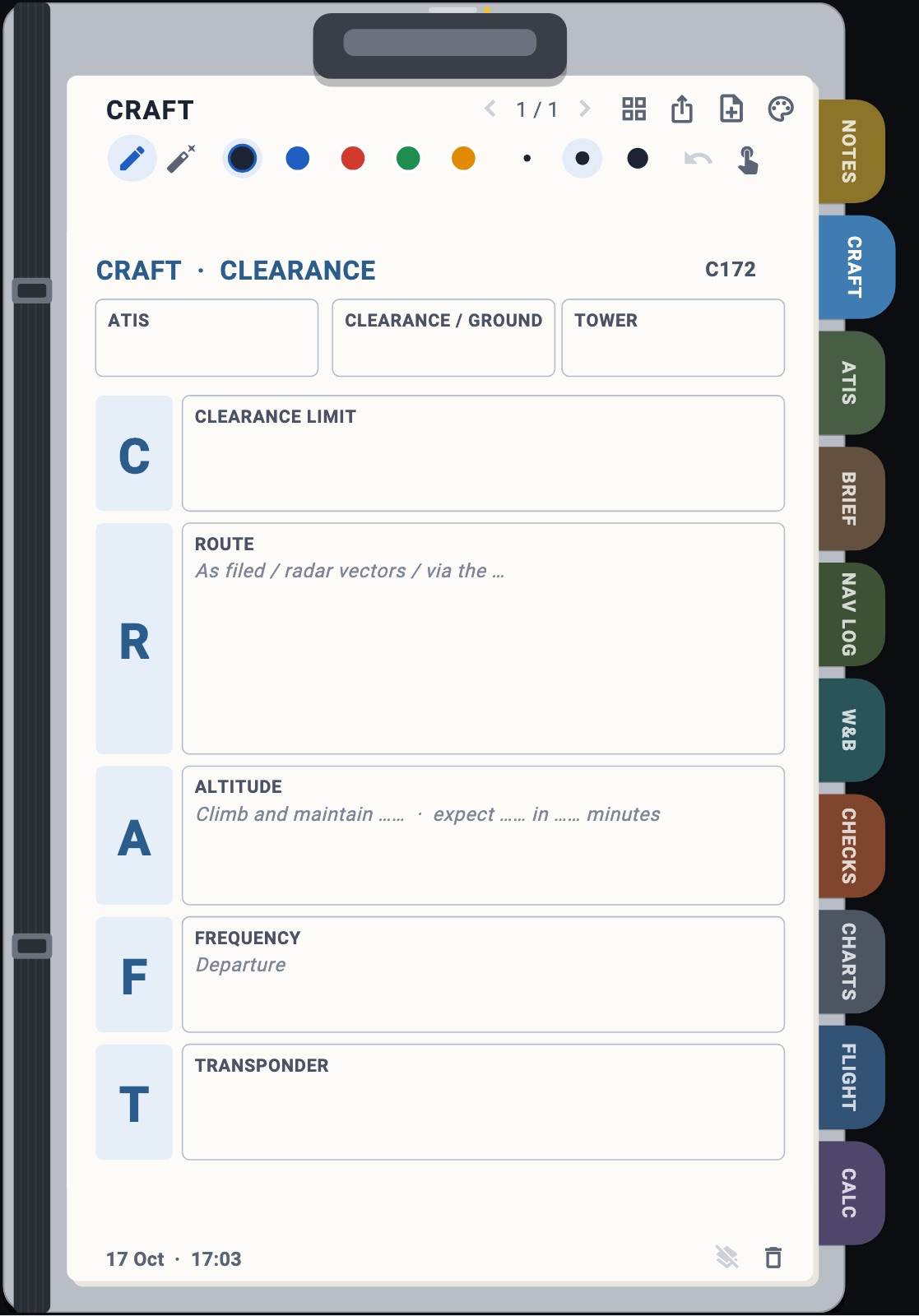
CRAFT: a clearance page, with boxes for the clearance limit, route, altitude, frequency and transponder.
-
ATIS: boxes for each item, already filled in gray from the destination’s latest METAR (wind, visibility, weather, sky, temperature, altimeter, and the runway into the wind). Copy the real ATIS over it.
-
Brief: takeoff and approach briefings with your aircraft’s speeds and the engine failure plan printed in.
-
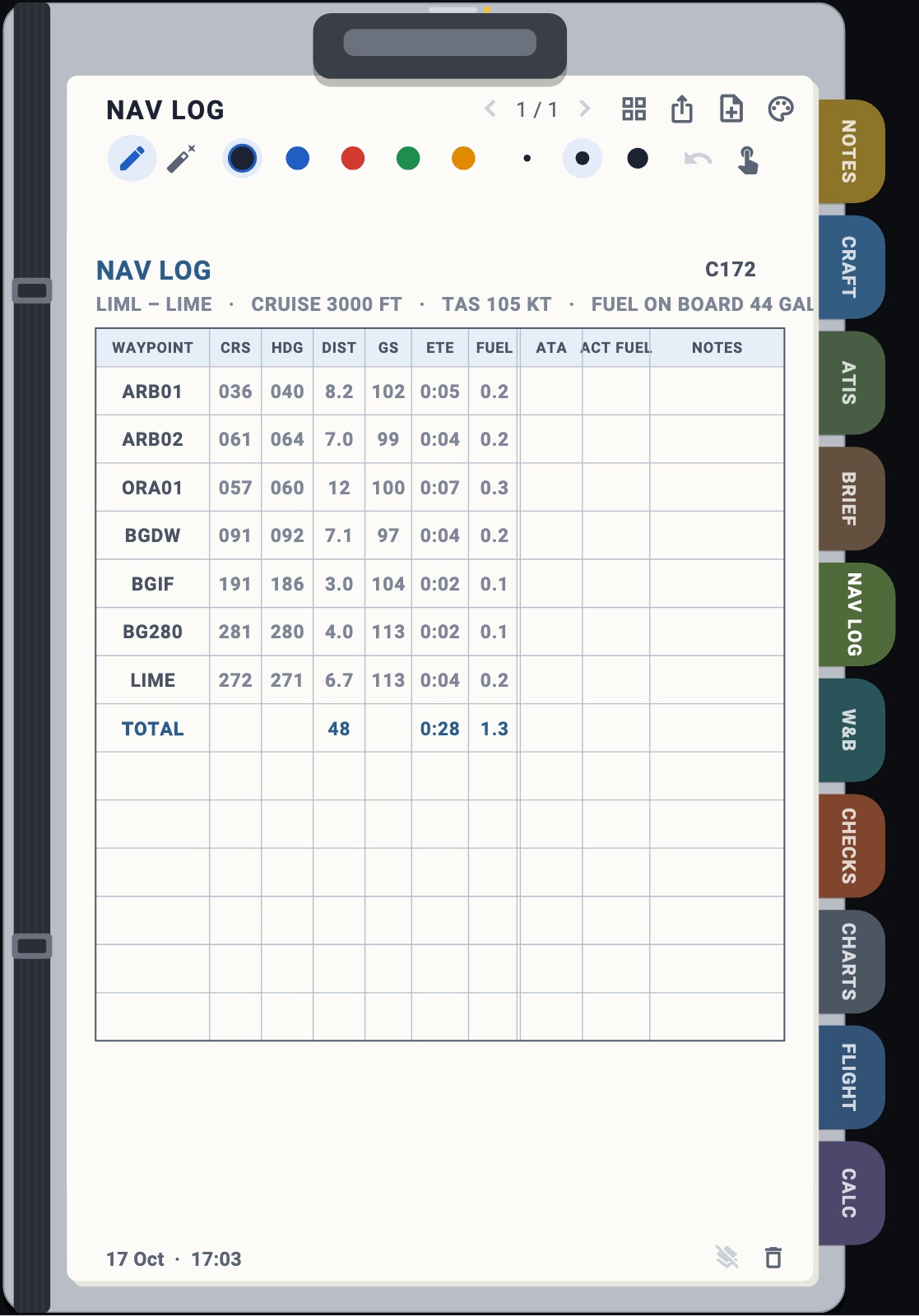
Nav Log: printed from your flight plan when you open the page. It has each leg’s course, heading, distance, groundspeed, time and fuel, and columns to write the actual times and fuel. Load a new flight plan, then add a new page to print it again.
All pages (the grid key) shows every page as a thumbnail, grouped by flight, with a filter. Touch one to open it; hold it to move, share or delete it. Share sends a page, or a whole flight’s pages, as a PDF.
Checklists
Section titled “Checklists”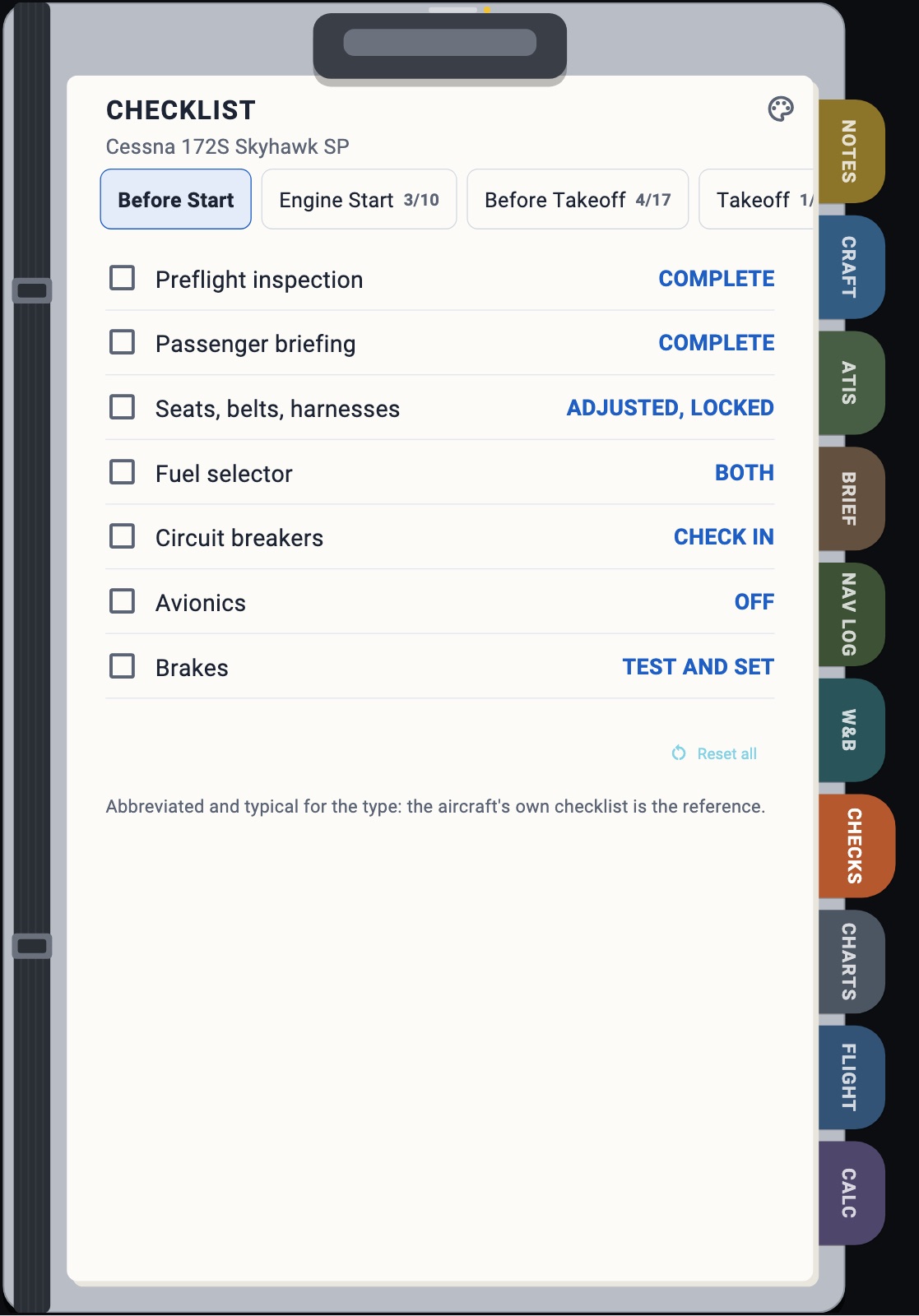
On the Checks tab: challenge and response, by phase of flight, for the aircraft you fly. A phase part done shows how far (3/7), a finished one a tick; Reset all asks first. Items the simulator can see (lights, master, avionics, parking brake, fuel pump, mixture, magnetos, flaps, gear, transponder) tick themselves, marked SIM. You can still untick them.
The checks are one list across the app: an item checked here is checked on the NEXT’s and the G1000’s checklist pages too. On the Hub they’re shared with your other devices, so two people (or two screens) work through the same list: check an item on the iPad and it’s checked on the phone (One cockpit, several devices). The Hub’s Cockpit page shows how far along each aircraft’s checklist is, and resets it for everyone.
Weight and balance
Section titled “Weight and balance”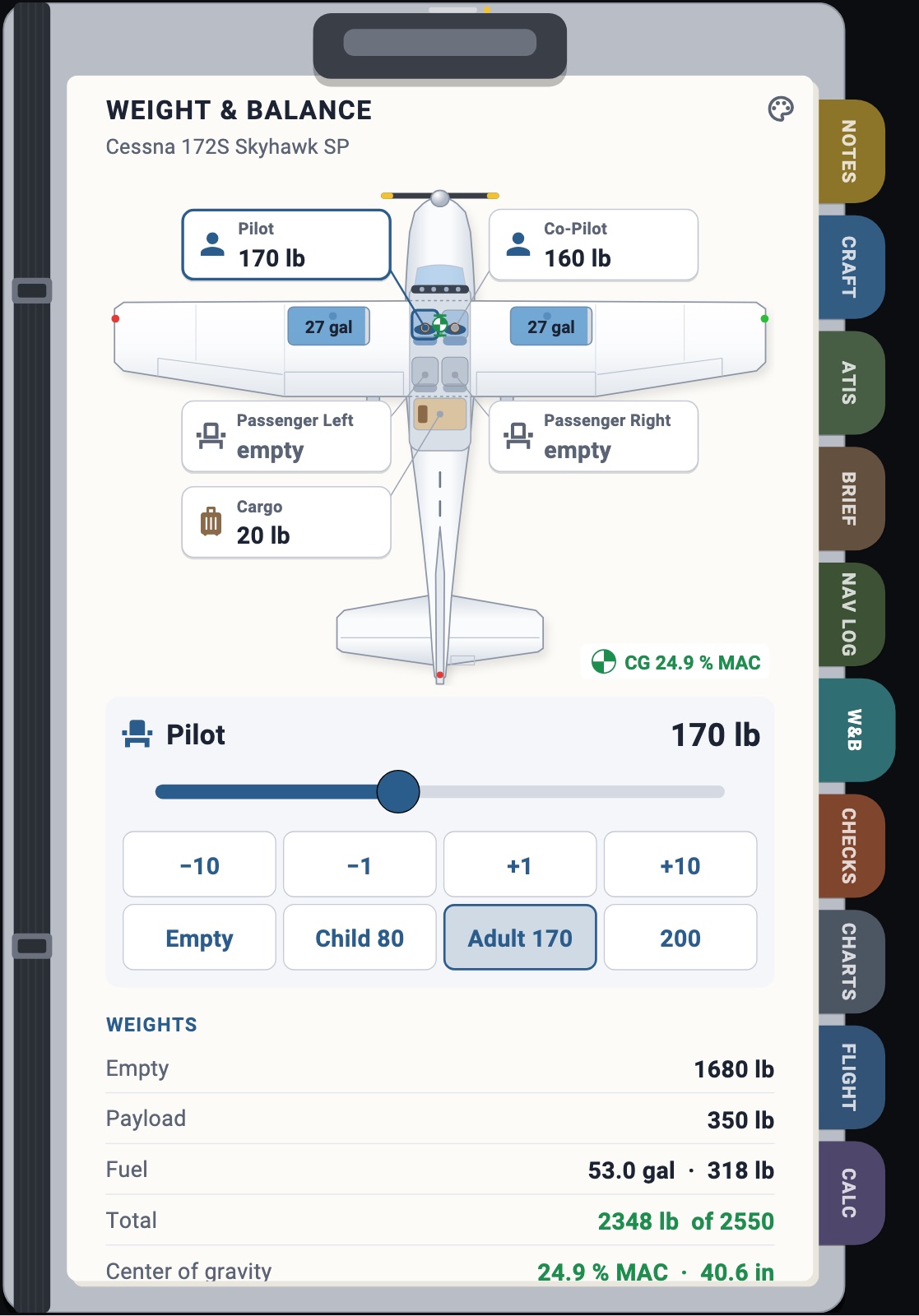
The aircraft seen from above: touch a seat, the baggage or a tank to set it, and the weights and the balance are set in the simulator (MSFS). The stations, the tanks, the empty and maximum weights come from the simulator, under its own names.
The center of gravity is drawn on the aircraft’s envelope. For thirteen of the known aircraft (the Cessna 172, 152, 182 and T210, the Citation CJ4, the Piper Archer and Seneca V, the Cirrus SR22 and Vision Jet, the Diamond DA40 NG and DA62, the Beechcraft Bonanza G36 and Baron 58) it’s the handbook’s shape (the forward limit moving aft as the weight goes up, on some the aft limit moving too, the CJ4’s forward limit swinging aft again when light, the 172’s utility category inside it) laid on the simulator’s limits. Any other aircraft gets the simulator’s own forward and aft limits; an aircraft the Hub doesn’t know takes the simulator’s name on the page.
A line follows the CG as the fuel burns (the fuel’s arm learned from the simulator as the fuel changes, else the handbook’s), down to the zero fuel weight, which is listed with its CG; outside the envelope at either end, it turns red.
An aircraft with more than eight stations (the CJ4’s twelve: the two crew, six seats, the couch, the two galley cabinets and the baggage) keeps its seats on the drawing and lists them under it, up to thirteen stations (Hub 0.4.64); a helicopter or an airliner shows its stations as a list alone. Touch one to set its weight, then the tanks. On an iPhone, the Remote has the same page in the NEXT’s style.
Weight and balance needs the Hub: the demo and X-Plane don’t send it.
Charts
Section titled “Charts”Each airport’s diagram, drawn from the simulator’s own data, with its frequencies. Import your own charts as PDFs or images from the Files app. Set two known points on a chart to see the aircraft on it, or lay it under the route on the map.
Flight and Calc
Section titled “Flight and Calc”- Flight: the flight computer. Descent planning, wind correction and runway components, time and fuel, density altitude and true airspeed. Values come from the simulator, updated once a second, until you type your own: touch a value and type it on the page’s keypad. Hold it to give it back to the simulator.
- Calc: a calculator, and its number converted into every unit a pilot uses.